
How to download Skool videos as MP4
Skool is a great place to learn, but its classroom videos only play in the browser while you're online. To watch a lesson on a flight, rewatch it at your own pace, or keep the course you studied, you need to save it as a normal video file. This guide shows the fastest way to download Skool videos as one MP4 in full quality, on Mac or Windows, and what to avoid.
Can you download videos from Skool?
Yes, for lessons your own account can already watch. Skool streams classroom videos in many small pieces, which is why there's no single video file you can right-click and save. A Skool downloader collects those pieces, joins the picture and the sound, and saves the result as one MP4 on your computer.
What no legitimate tool can do is unlock lessons you don't have access to. If you can't play a lesson in Skool, you can't download it either.
Three ways to save Skool videos, compared
| Method | Quality | Time per lesson | Verdict |
|---|---|---|---|
| Screen recording | Lower: the video is re-recorded, often with dropped frames | As long as the lesson, in real time | Works, but slow and lossy |
| Developer tools and ffmpeg | Original | 10+ minutes of technical work | For programmers only |
| A Skool video downloader extension | Original, up to 1080p | One click, then a short wait | The easiest option |
How to download a Skool video in 3 steps
1. Add the extension and sign in
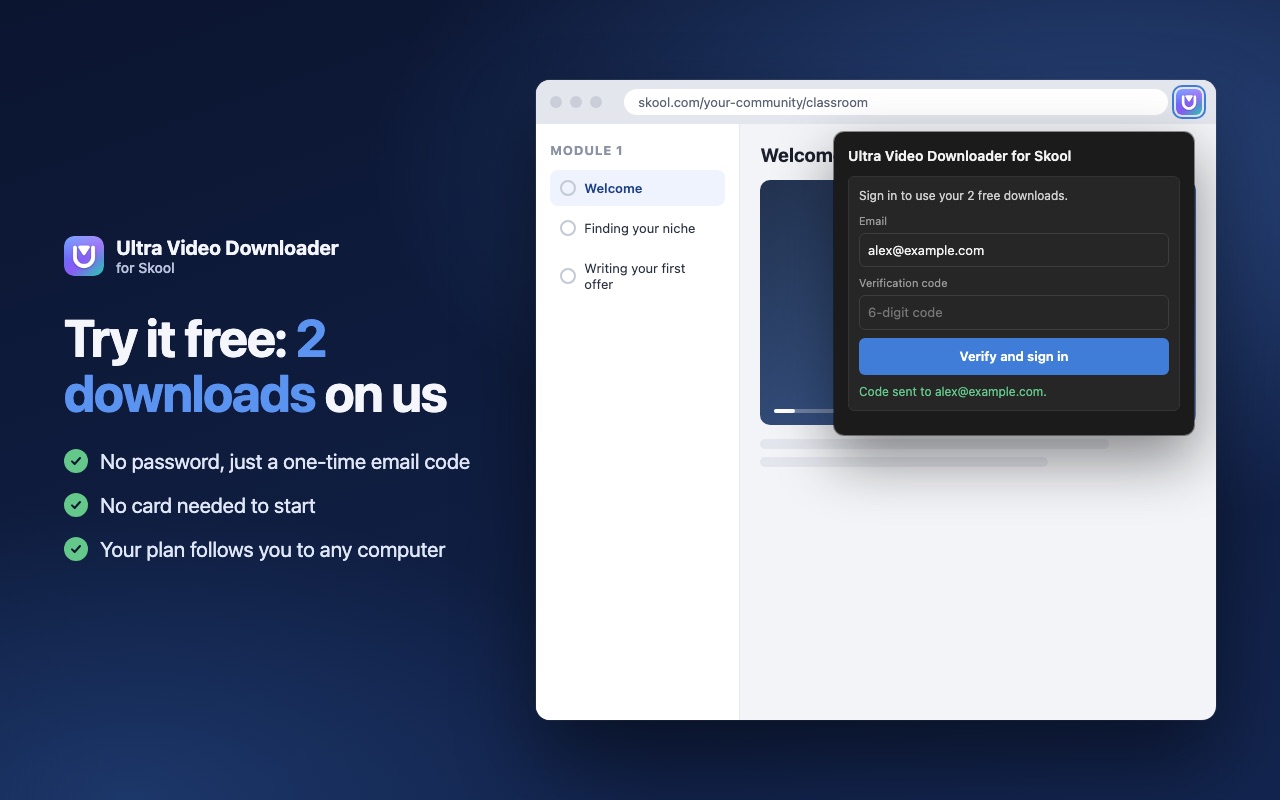
Install Ultra Video Downloader in Chrome, Edge, Brave or Opera. Click its icon, enter your email and type the 6-digit code you receive. There's no password, and your first 2 downloads are free.
2. Open the lesson and choose the quality
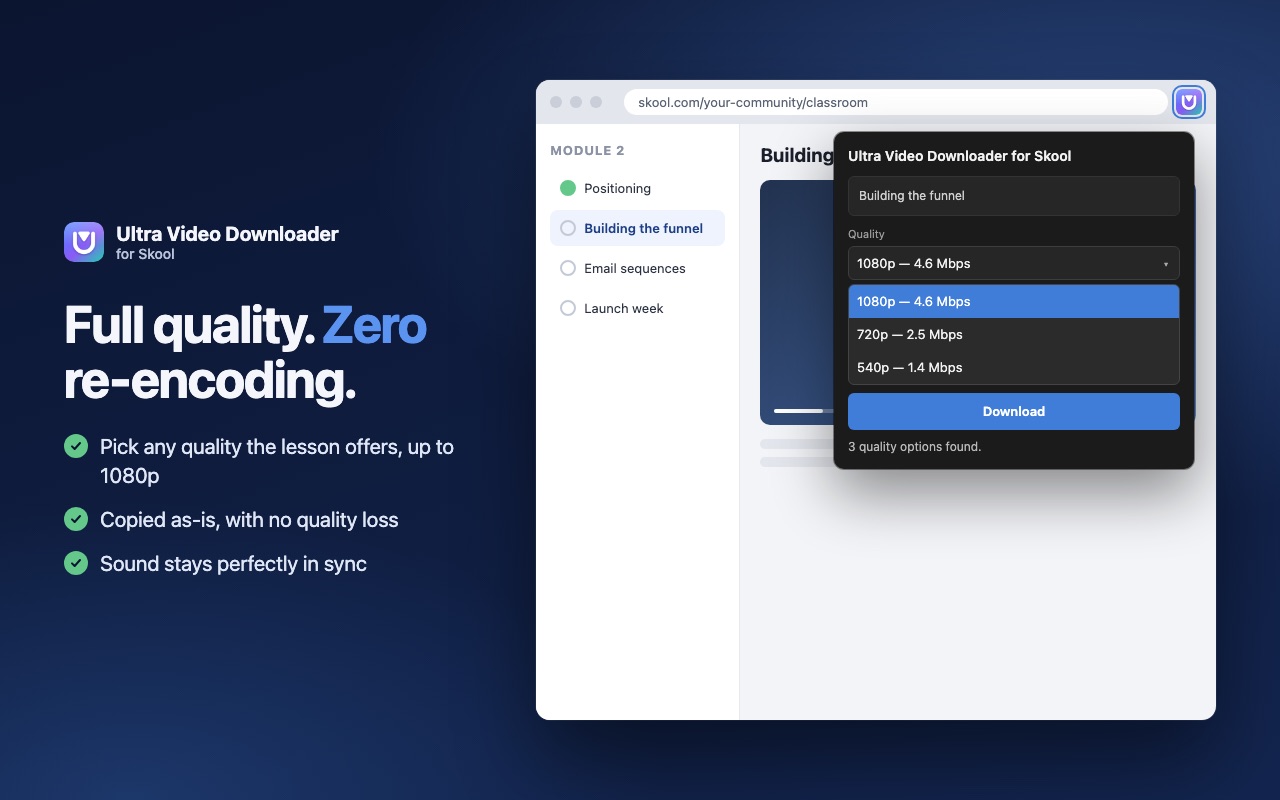
Go to the lesson in your Skool classroom and click the extension icon. It finds the lesson's video and lists every quality available. 1080p is the best; choose 720p for a smaller file.
3. Press Download
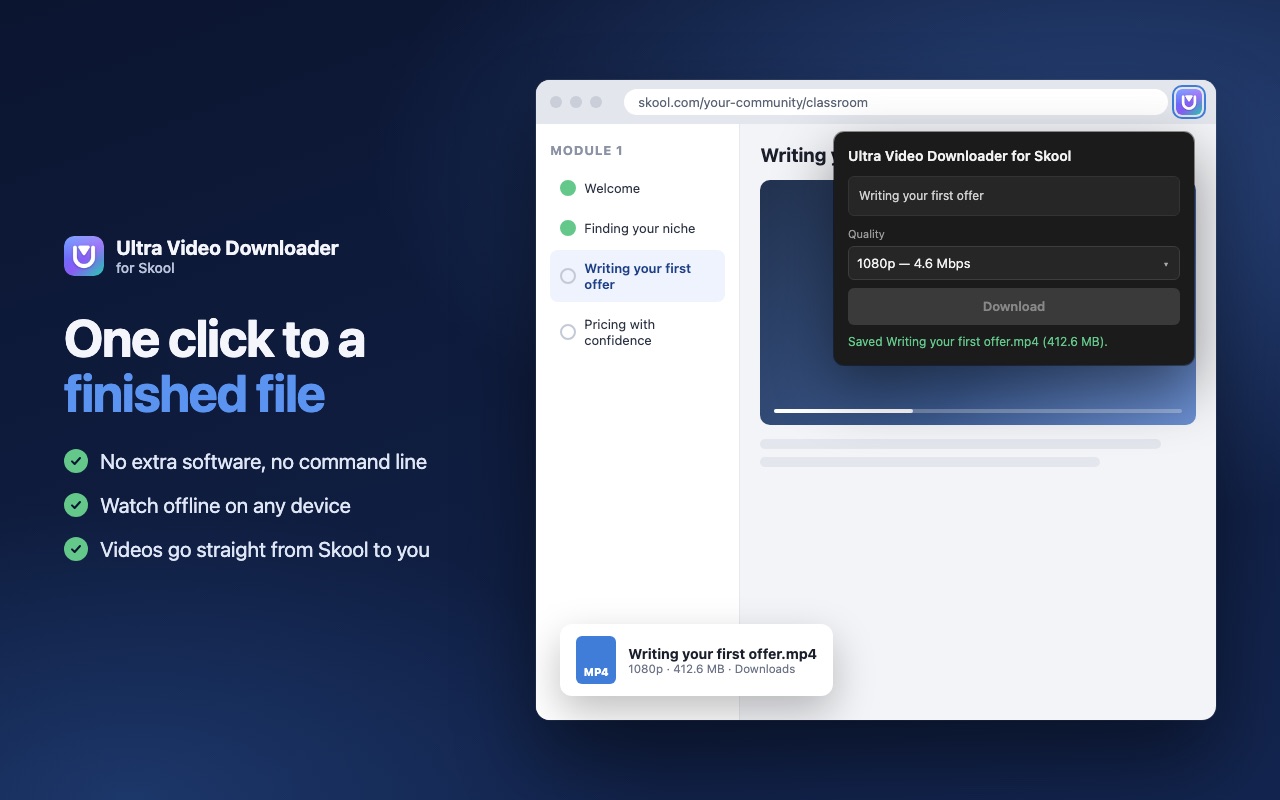
The extension downloads the video, joins picture and sound into one MP4, and saves it to your Downloads folder. Keep the tab open until it says Saved. To save the next lesson, click it in Skool and press Download again.
Downloading Skool videos on Mac and Windows
The steps are the same on both, because the downloader runs inside your browser. On a Mac the file lands in Downloads and opens in QuickTime; on Windows it lands in Downloads and opens in the Films & TV or Media Player app. Linux works too. The Skool mobile app isn't supported. To watch on a phone, save the lesson on your computer and copy the MP4 across; our offline guide shows how.
Tips for the best quality
- Choose the highest quality. The file is copied exactly as Skool streams it, so 1080p in means 1080p out, with no re-encoding.
- Moving to the next lesson? Click it in Skool and open the extension again. Each download is the lesson on your screen.
- Seeing an error about the link? Skool's video links expire after a while. Reload the lesson page and try again.
- Lesson uses Loom, YouTube or Vimeo? Those embedded players aren't Skool's own player, and Ultra Video Downloader doesn't save them.
- Respect the creator. Save lessons for your own offline viewing only. Never share or re-sell them.
Frequently asked questions
How do I download Skool videos?
Install a Skool video downloader extension such as Ultra Video Downloader, open the lesson in your Skool classroom, choose a quality and press Download. The lesson is saved as one MP4 file.
Is there a free way to download Skool videos?
Ultra Video Downloader gives you 2 free full-quality downloads with no card needed. After that, Pro is $9.99/month or $107.89/year, and you can cancel anytime.
Can I download a whole Skool course at once?
Not yet. You save one lesson at a time: open a lesson, press Download, then move to the next one.
Does it work on Mac and Windows?
Yes. It runs in Chrome, Edge, Brave and Opera on Mac, Windows and Linux. It does not work in the Skool mobile app.
Can I download Skool lessons I haven't joined?
No. Only lessons your own Skool account can already play can be saved.