
Download Skool lessons and watch them offline
Skool's classroom is built for streaming: lessons play while you're connected. On a plane, a train or a weak hotel Wi-Fi, that means no learning. The fix is simple: download the Skool lessons you need as MP4 files first, then watch them offline on any device. This guide shows how, including getting them onto your phone and keeping a whole course organised.
Step 1: save the lessons as MP4
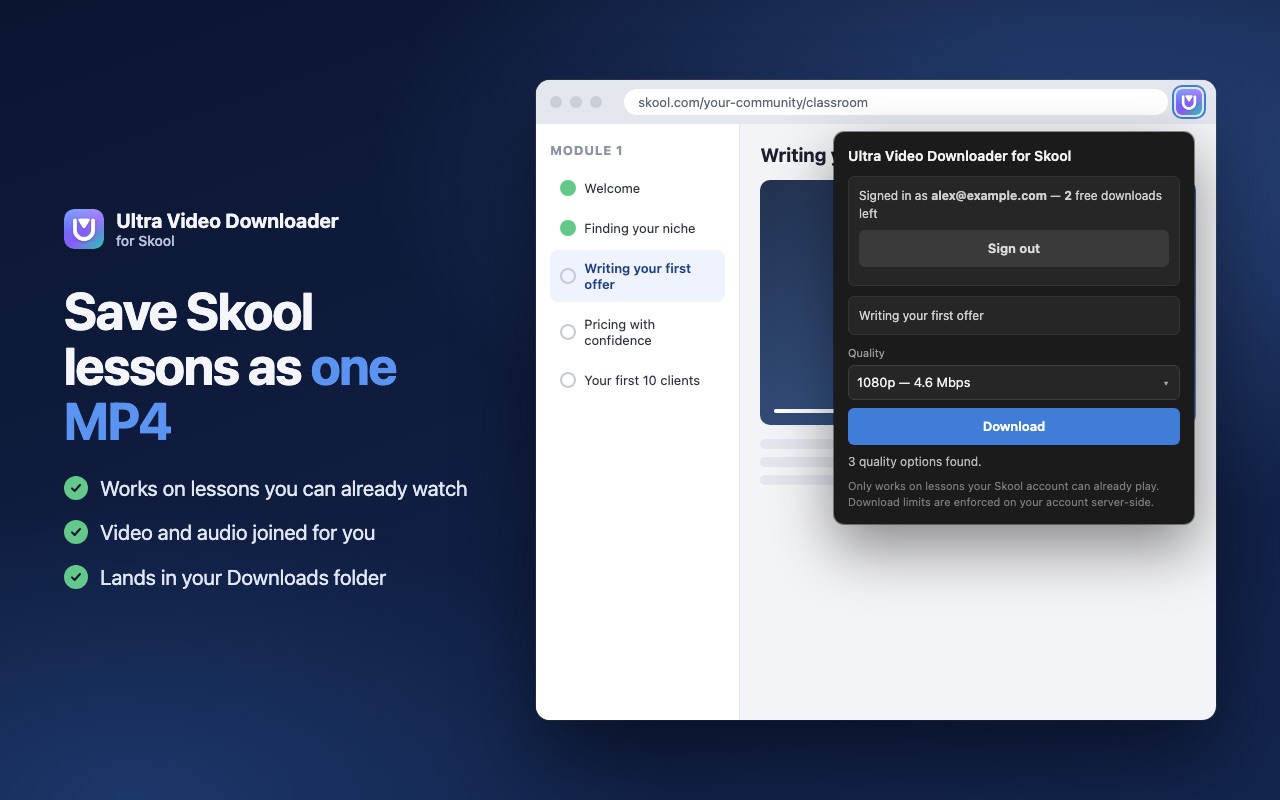
Open the lesson in your Skool classroom, click the Ultra Video Downloader icon, choose a quality and press Download. The extension joins picture and sound into a single MP4 and saves it in your Downloads folder. Repeat for each lesson you want offline. The full walkthrough with screenshots is in how to download Skool videos.
Step 2: watch offline on your laptop
An MP4 plays in the video app that comes with your computer, with no internet needed: QuickTime on a Mac, Media Player or Films & TV on Windows. Free players such as VLC also let you change the playback speed, which is handy for long lessons.
Step 3: watch Skool lessons offline on your phone
iPhone and iPad
On a Mac, AirDrop the MP4 to your iPhone and choose to save it to Files or Photos. On Windows, upload it to iCloud Drive, Google Drive or OneDrive, then tap Download or Make available offline in that app.
Android
Connect the phone with a USB cable and copy the MP4 into the Movies folder, or use a cloud drive and mark the file for offline use. Any video player on the phone will then play it without a connection.
Keep a whole course organised
- One folder per course, named after the community and course.
- Number the files as you save them, for example 01 Welcome.mp4, 02 Finding your niche.mp4, so they stay in lesson order.
- Download before you travel. Saving needs a connection; watching doesn't.
- Keep it personal. Lessons belong to their creator. Watch them yourself, but never share or upload them.
How much space do Skool lessons need?
It depends on length and quality. As a rule of thumb, a 30-minute lesson needs roughly 0.5 to 1 GB in 1080p and about half that in 720p. A 64 GB phone holds dozens of hours of lessons, and a USB stick or laptop holds whole courses.
| Quality | 30-minute lesson (approx.) | Best for |
|---|---|---|
| 1080p | 0.5–1 GB | Laptop, TV, screen-heavy lessons |
| 720p | 0.25–0.5 GB | Phones and tablets |
| 540p | about 0.2–0.3 GB | Saving space on the go |
Frequently asked questions
Can you watch Skool lessons offline?
Yes, once you have saved them as video files. Download each lesson as an MP4 with a Skool video downloader, then watch it in any video player with no internet connection.
Can I watch downloaded Skool lessons on my phone?
Yes. Save the lesson on your computer, then copy the MP4 to your iPhone or Android phone with AirDrop, a USB cable or a cloud drive set to offline.
Do downloaded lessons still work after my membership ends?
The MP4 files you saved stay on your device. Keep them for your own reference only and respect the creator's rights.
Does it work in the Skool mobile app?
No. Ultra Video Downloader is a browser extension for Chrome, Edge, Brave and Opera on your computer.